

MinBeth Guide
MinBeth plans the job, gathers what is missing, crafts what it can, and helps manage market and retainer work. The idea is simple. Tell it what you want, choose how you want it done, then let it work through the queue.
Basic flowCreate an order, choose the amount, choose sourcing, then press START QUEUE.
Best page to watchIf you are unsure what MinBeth is doing, open Progress first.
Crafting dependencyCrafting and craft solving need Cypher Craft. Dawntrail crafting also needs Cypher Craft DT.
Economy dependencyMarket Analysis is only needed for Economy.
Good habit: If something looks stuck, check Progress before changing anything else. That page usually tells you what MinBeth is waiting for.
Orders
This is where the job starts. Orders tell MinBeth what item you want, how many you want, and how it should get there.
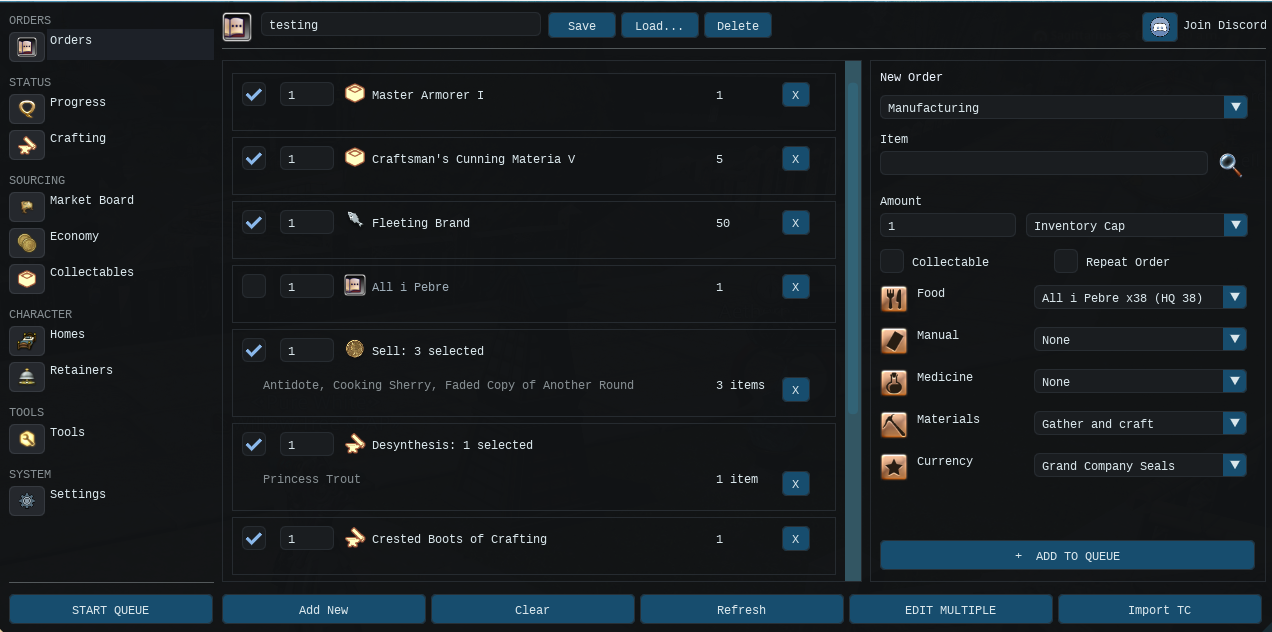
Inventory CapTops you up to the number you enter.
ReplenishGets the full amount entered, no matter what you already have.
Retainer SalesRestocks an item one of your retainers is already selling.
Craft QualityFor crafted items, pick HQ, NQ, or Quick Synthesis.
What matters most here
- Choose the correct amount mode first.
- Pick the right quality for crafted items.
- Make sure your sourcing rules match what you want MinBeth to do.
Simple HQ explanation
MinBeth does not just make every subcraft HQ for the sake of it. It checks your crafter and works out how much starting quality the final craft needs, then only pushes HQ where it actually helps.
Progress
This is your live status page. It shows what the current order is doing now, what it has already done, and what it is waiting for next.
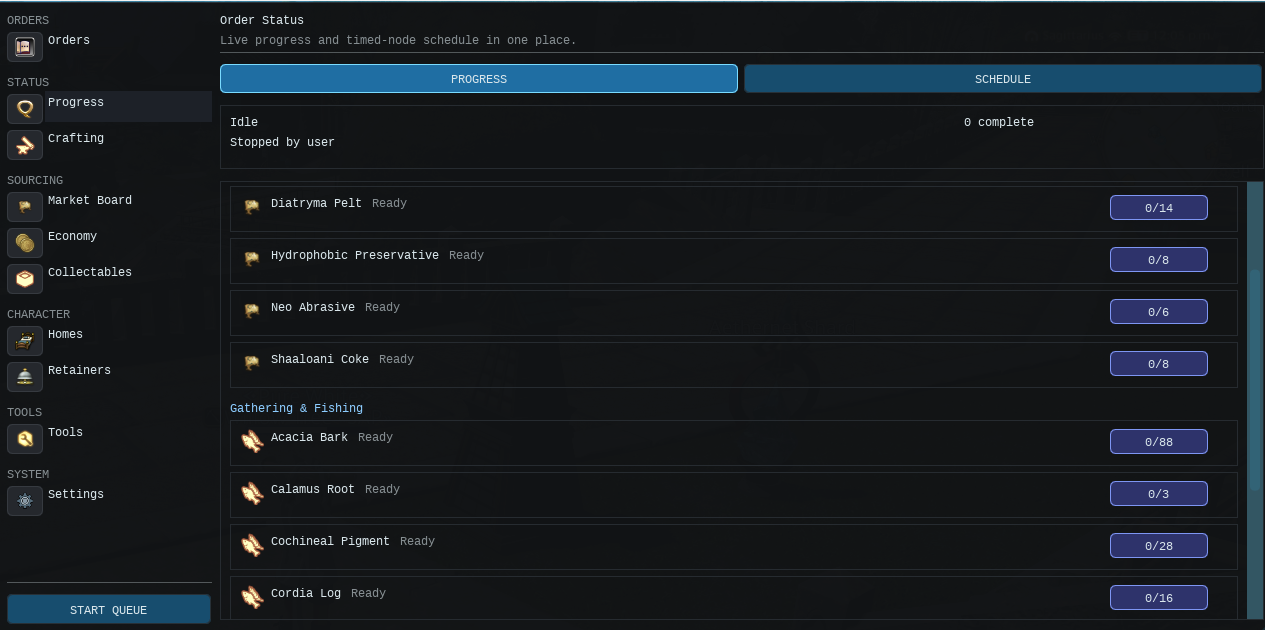
Current stepShows the task MinBeth is on right now.
Waiting reasonUseful when the queue pauses for a node, weather, travel, stock, or another requirement.
Queue trackingHelps you see how far through the work it is.
First place to checkIf something looks wrong, start here.
Best tip: If MinBeth looks idle, Progress usually explains why. Most of the time it is waiting for something rather than failing.
Crafting
This page is for crafting work. It is where MinBeth handles recipe steps, subcrafts, and final item crafting.
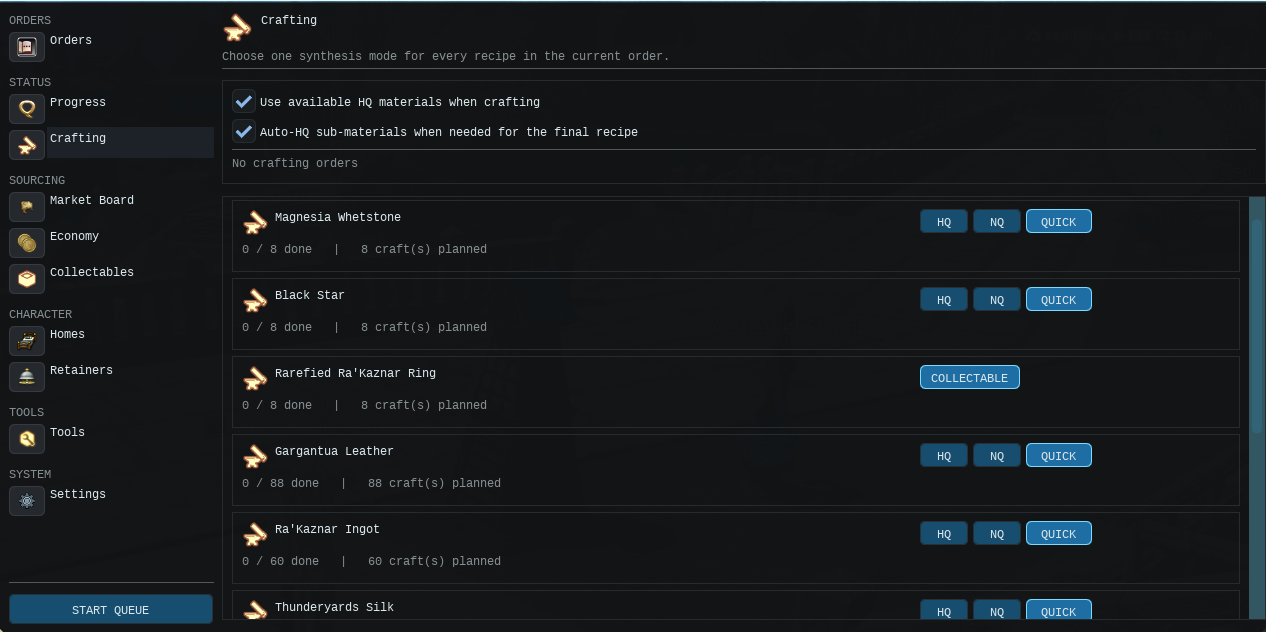
Uses Cypher CraftMinBeth leans on Cypher Craft for craft solving and quality planning.
Subcraft handlingIt works through required ingredients before the final craft.
HQ and NQ supportUseful for either quality target, depending on your order.
Quick SynthesisGood when quality does not matter and you just want quantity.
When to use HQ
Use HQ when the finished item needs to be high quality. If you only need stock quickly, NQ or Quick Synthesis is usually the simpler option.
Market Board
This covers buying and selling. It helps MinBeth buy missing materials and manage retainer listings.
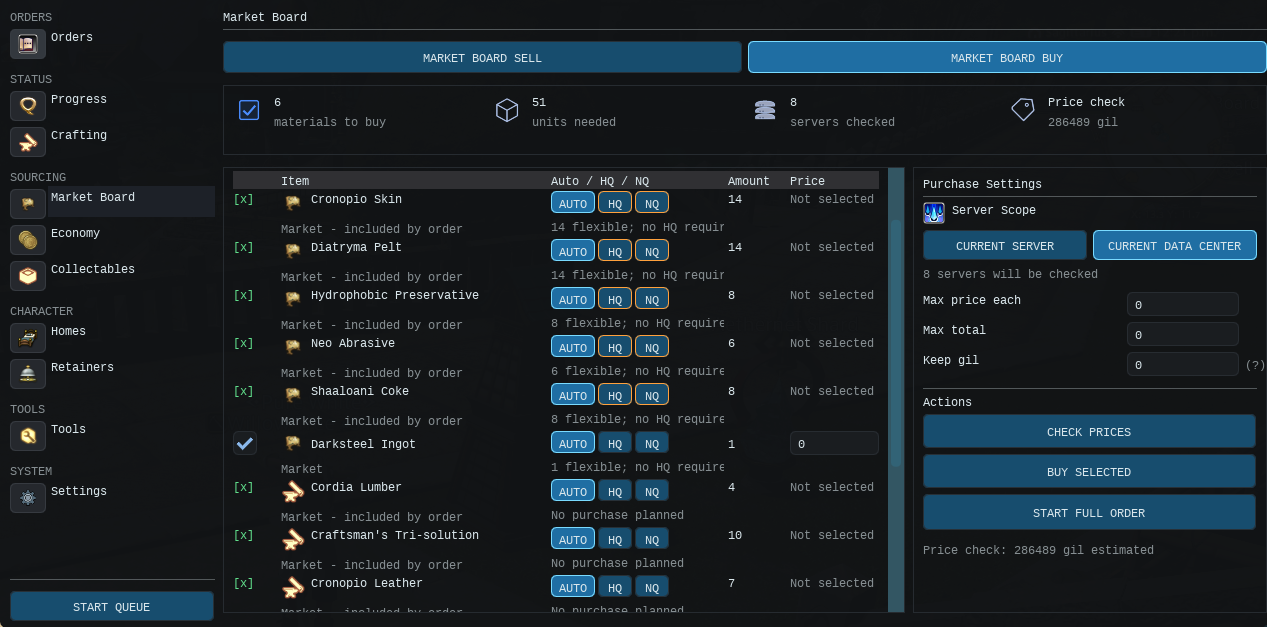
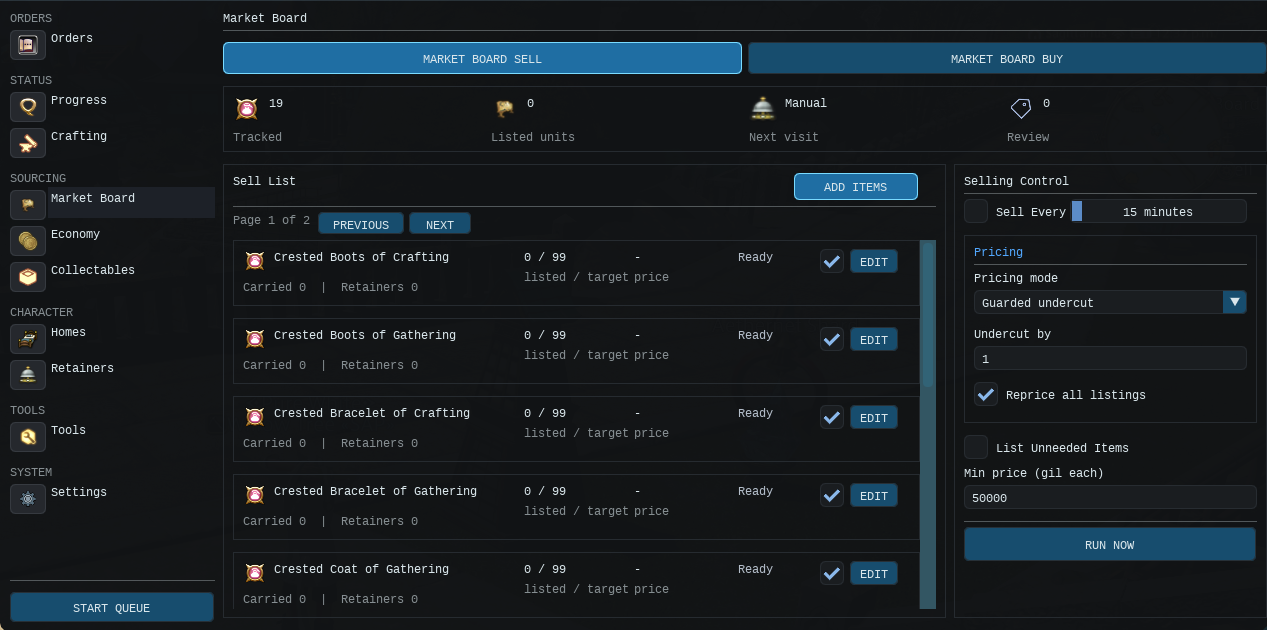
BuyingLets MinBeth buy missing materials or needed HQ subcrafts, if your order allows it.
SellingLets MinBeth help with retainer listings, repricing, and restocking.
Price limitsVery important. Set your limits so MinBeth does not buy more than you want.
World travelMinBeth can compare prices across your data centre and travel for better listings.
Important buying note
Market Board buying is for materials and subcrafts used by the order. It does not just buy the finished item for you.
Simple selling note
If you are using retainer sales orders, this page becomes much more useful. It ties in well with retainer syncing and restocking.
Economy
Use Economy when you want clearer market data. It is mainly for checking prices, spotting value, and helping you decide what is worth buying or selling.
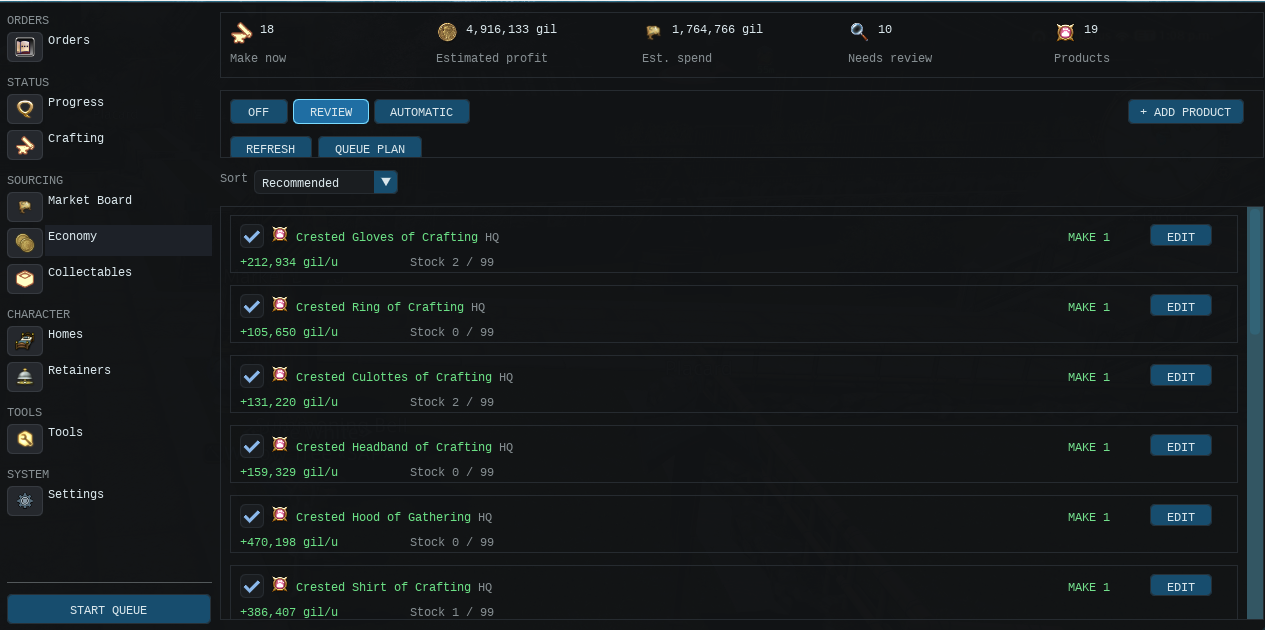
Price checkingUseful for seeing what items are roughly worth.
Decision helpHandy when choosing whether to gather, craft, or buy.
Market AnalysisThis page needs Market Analysis. The rest of MinBeth does not.
Best useUse it as a guide, not as the only thing making decisions for you.
Collectables
This page is for collectable related work. It helps you deal with collectable items and the jobs around them.
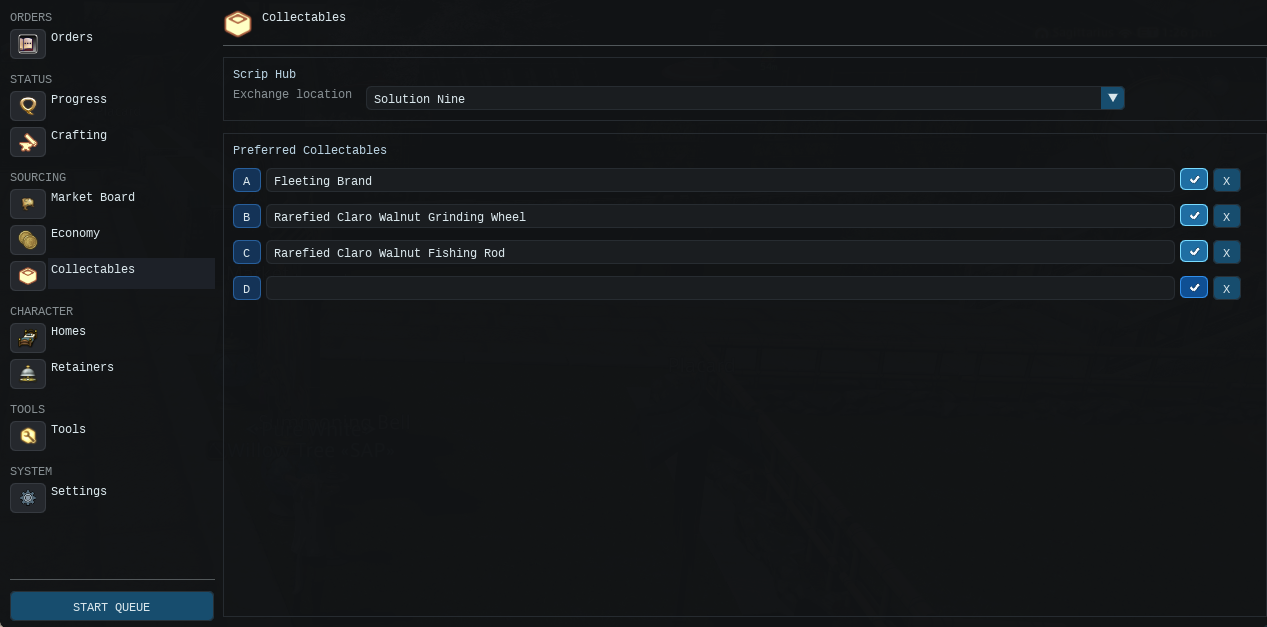
Collectable tasksUseful for items tied to collectable systems and rewards.
Good for scrip workHelpful when you are chasing scrip style turn ins or related goals.
Works with gathering and craftingDepends on the item and how it is obtained.
Best tipCheck the item requirement first so you know whether you need gathering, crafting, or both.
Homes
Homes is the small utility page for home related travel and housing shortcuts used by MinBeth.
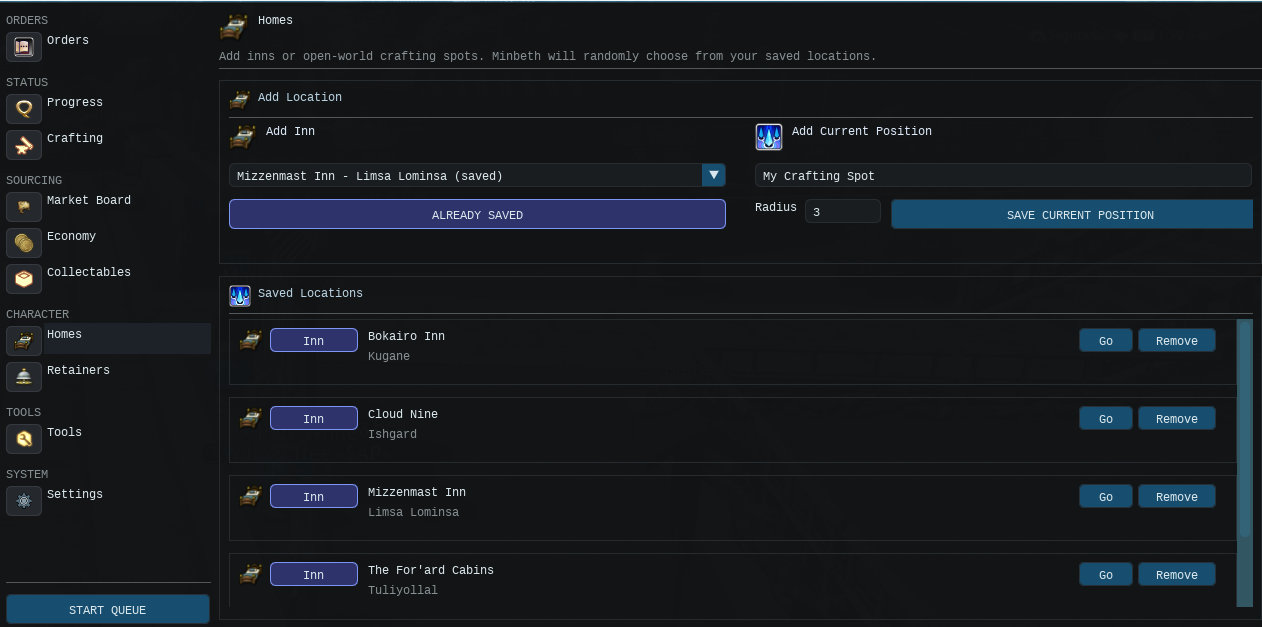
Travel helpUsed for home style locations and travel convenience.
Quality of lifeNot the busiest page, but useful if your workflow relies on home points.
Set it onceOnce your preferred locations are right, you usually do not need to keep changing them.
Keep it tidyOnly keep the options you actually use.
Retainers
This page manages retainer stock and retainer jobs. If you use market selling or shared storage a lot, this page matters.
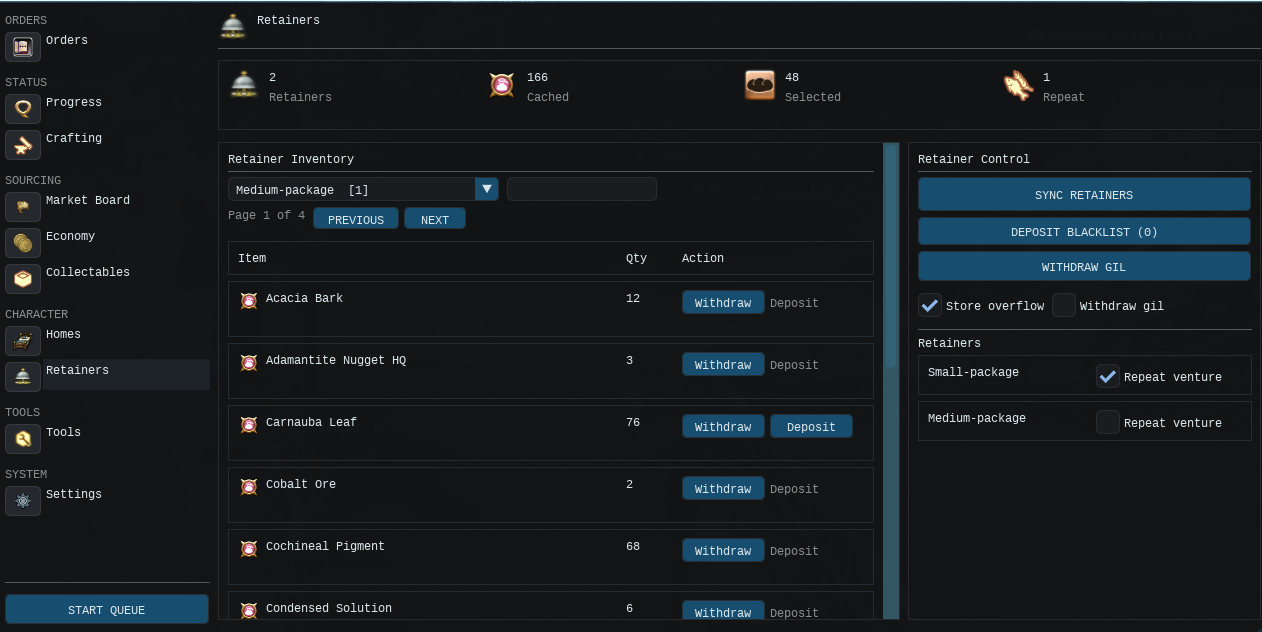
Sync retainersDo this so MinBeth knows what they hold and what they are selling.
Stock planningSynced retainer items can be counted during order planning.
Deposit and withdrawUseful for moving items in and out when needed.
BlacklistUse it for important items you never want MinBeth to dump onto a retainer.
Best tip: If retainer stock looks wrong, sync the retainer again, then refresh the order.
Tools
Tools contains Gear Planner, Melder, Master Books, Gearsets and Priorities.
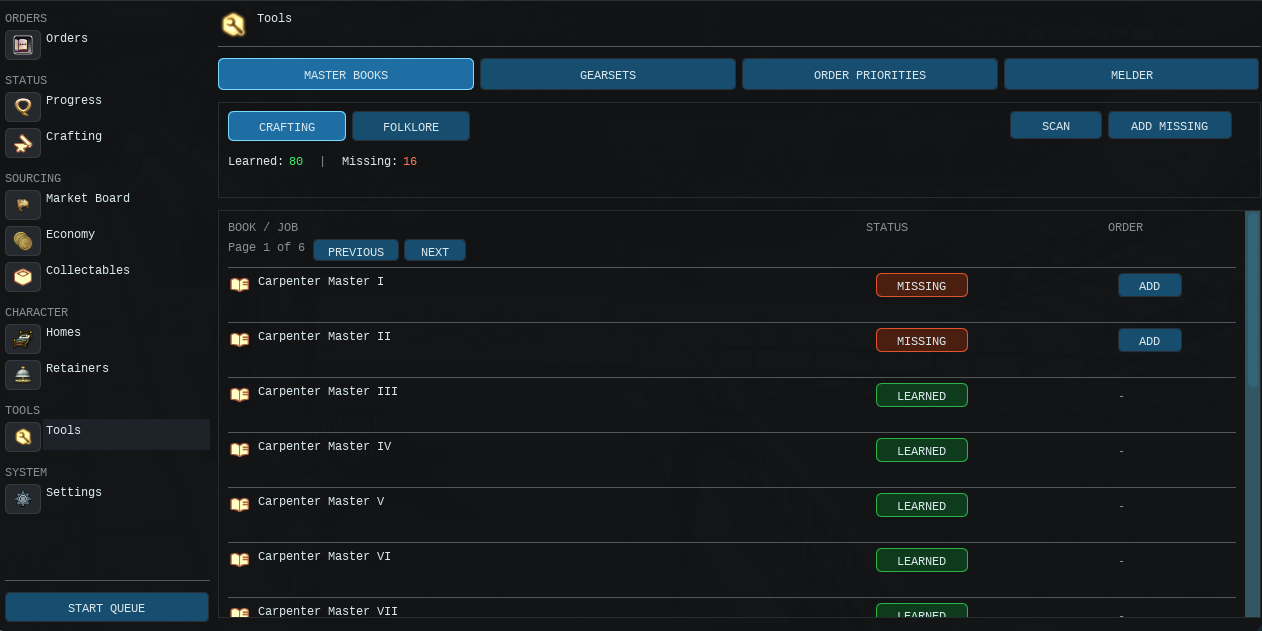
Master BooksCheck and manage recipe book style unlock helpers.
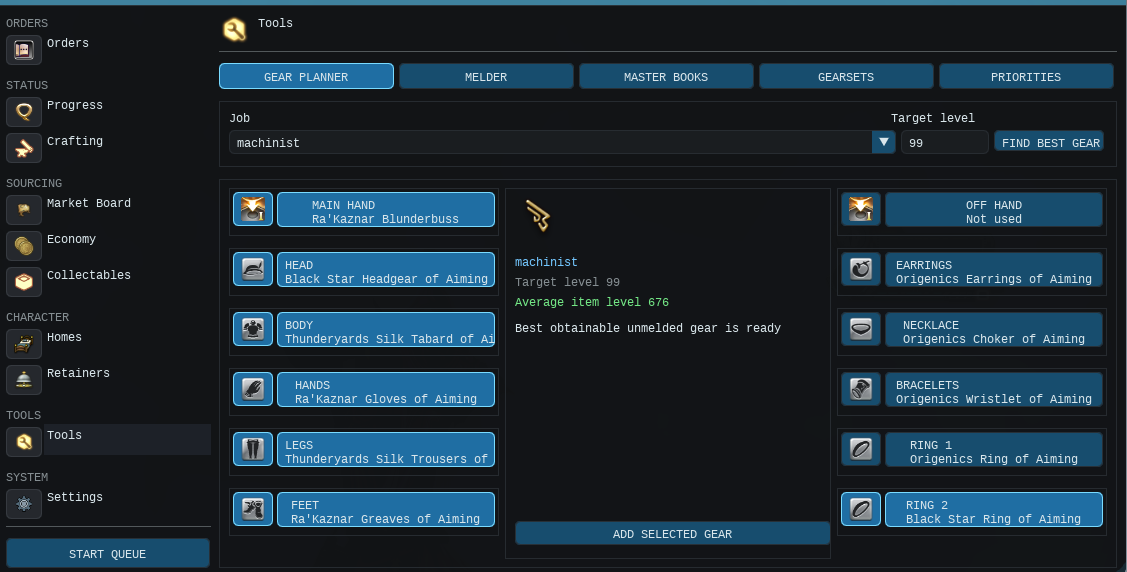
Gear PlannerFind gear for any level and quickly add it to an order.
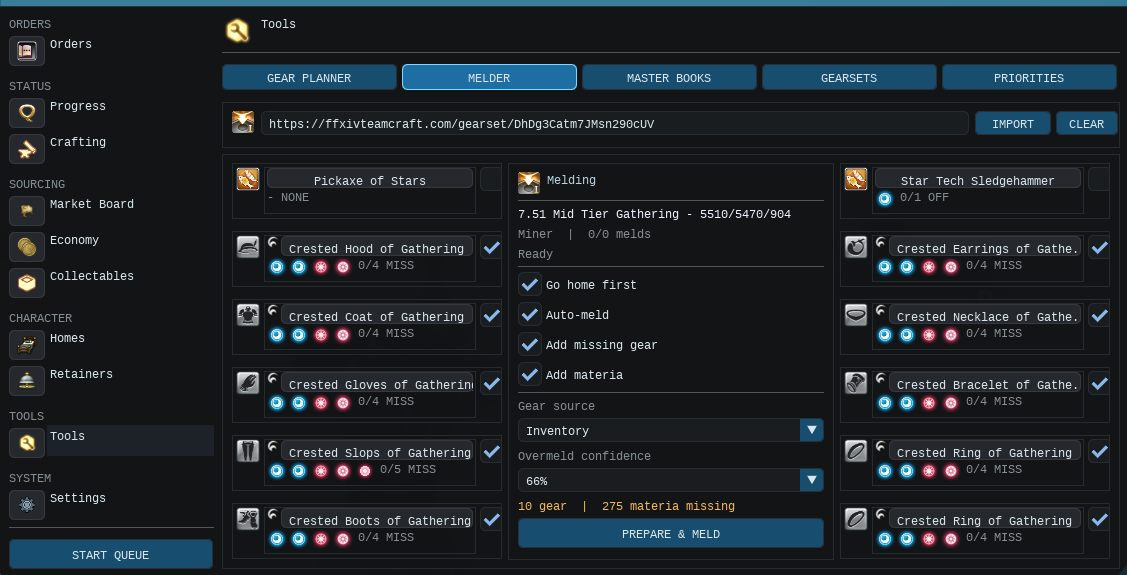
MelderImport a meld set, prepare missing gear and materia, then meld the enabled slots. Overmelds retry while materia is available.
GearsetsCheck saved gearsets used when MinBeth changes crafting or gathering jobs.
Simple way to think about Tools
If a feature feels like support for the rest of MinBeth rather than the main order path, it will usually live here.
Settings
Settings is where you shape how MinBeth behaves. Get this page right and everything else tends to run more smoothly.
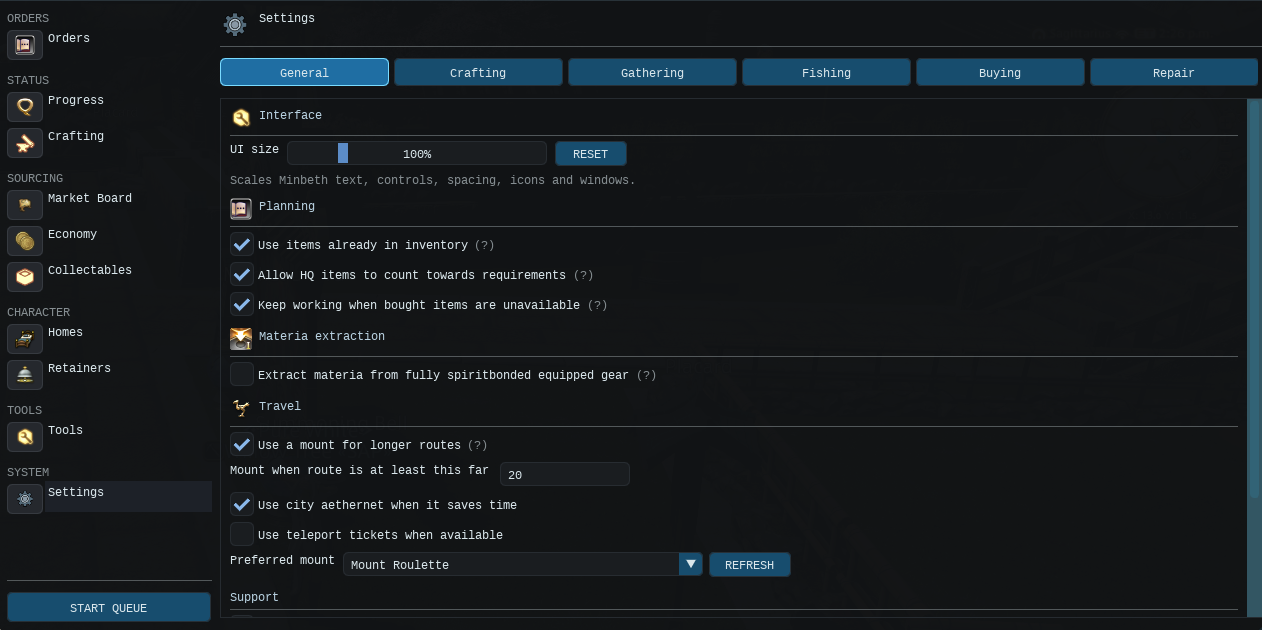
Global behaviourControls how MinBeth generally runs.
Market safetySet your gil keep amount and price limits here.
Feature controlGood place for turning features on or off to suit your setup.
Worth checking firstIf MinBeth is doing something you did not expect, a setting is often the reason.
Best tip: Before using Market Board buying, double check your price limits and the amount of gil you want to keep.